20 AI App Ideas That Put AI to Work for Your Team

The best AI app ideas are those that enlist artificial intelligence to do the tedious job no one on your team wants to do. Think chasing down approvals, drafting follow-up emails, and answering the same questions. Regardless of what you need your software to do, the underlying principle of a good AI app idea remains the same: it serve as a time-saver, not a time-waster.
These are exciting days to bring an app idea to life. We ran a study on how employees and leaders use AI at work, and we found that 72% of leaders who found an employee-built app kept it running. That means there's a pretty good chance that whatever idea you run with will beat the status quo, and your team will thank you for it.
We're giving you 20 AI-powered app ideas, sorted the ideas into five categories: AI that reads, AI that sorts and sends, AI that drafts, AI that flags, and AI that answers. If you're looking for more inspo, check out our list of business app ideas for common workflows.
Use the following list as inspiration to riff off or take our ideas and call them your own — we won't mind.
Key Takeaways
- AI that reads documents pulls amounts, dates, and terms from invoices, contracts, receipts, and insurance certificates.
- AI that sorts requests tags each ticket, feedback comment, form request, and lead note, then routes it to the right team.
- AI that drafts first versions turns your team's notes and records into action items, status updates, customer replies, and procedures.
- AI that flags problems spots early warning signs in inventory, project, account, and payment data, and a person decides what to do about each flag.
- AI that answers questions draws on your own documents and data, shows the source for every answer, and relies on an owner to keep the material current.
AI That Reads: Turn Documents into Data
Teams lose hours sifting through the same documents every week. Invoices, contracts, and receipts pile on someone's desk, leaving them to skim through each file and enter the few details that matter into the system. An AI-backed app can pull the needed information from documents in a first pass and fill the correct fields. The ideas in this group fit best where the documents follow a familiar layout and you need the same fields every time.
1. Invoice Intake
An invoice intake app reads the invoices that land in your inbox and turns each one into a record ready for approval. The AI pulls the vendor, invoice number, amount, and due date from each PDF or image and matches it to your vendor list. Finance reviews the record, then approves it or sends it back. Pair it with an approval workflow app to send invoices over a set amount to a manager first.
Example prompt: Build an invoice intake app. When an invoice arrives in our accounts payable inbox, read the vendor name, invoice number, amount, and due date, and create a record. Send each record to finance for approval. Route invoices over $5,000 to the finance manager.
2. Contract Renewal Tracker
A contract renewal tracker reads your contracts and lists every renewal date and notice deadline in one place. The AI pulls the renewal date, notice period, and price terms from each vendor or software contract, and the contract owner confirms them against the signed copy. A software deal that renews in March with 60 days' notice shows up on the list in December, with time left to negotiate. Pair it with a vendor management app to keep terms next to each vendor's contacts and spend.
Example prompt: Build a contract renewal tracker. Read each uploaded contract and pull the vendor, renewal date, notice period, and price terms. Let the contract owner confirm the dates. List upcoming renewals in date order and remind the owner 30 days before each notice deadline.
3. Expense Receipt Logger
An expense receipt logger turns a photo of a receipt into a finished expense line. Your team snaps the receipt on their phone, and the AI reads the merchant, date, amount, and tax, then suggests a category from your expense list. The employee confirms each line before submitting, and a manager approves the full report. No more shoebox of faded receipts at month end.
Example prompt: Build an expense app. After employees upload a photo of a receipt, read the merchant, date, amount, and tax, and suggest a category from our expense list. Let the employee confirm the line, then send the report to their manager for approval.
4. Certificate of Insurance Tracker
A certificate of insurance tracker reads vendor certificates and warns you before coverage lapses. The AI pulls the insurer, coverage limits, and expiry date from each certificate, then flags any that expire within 30 days or fall below your requirements. Your ops or risk lead confirms the details and requests a new certificate from the vendor. Add certificate status to your inspection management app for vendors who work on your sites. Inspectors can see whether a crew's coverage is current before work starts.
Example prompt: Build a certificate of insurance tracker. Read each vendor certificate and pull the insurer, coverage limits, and expiry date. Flag certificates that expire within 30 days or fall below our minimum limits. Send flagged certificates to the risk lead to review and request a renewal from the vendor.
AI That Sorts & Sends: Route Requests to the Right Place
This one is for the team that's bombarded by requests from every direction: support tickets, web forms, emails, and survey comments. Someone has to wade through the ocean of info, organize it, and pass it along to the right person. What if your team had an AI app could look at the words in each request, match them to the categories and rules your team set, and route the request to the right person? The four AI automation ideas below are some of the easiest to test: run the AI's choices next to your team's for a week and see where they differ.
5. Ticket Triage
A ticket triage app reads each new ticket, tags its category and urgency, and sends it to the right queue. An IT help desk might get "my laptop won't turn on" and "I need access to the finance folder" in the same minute. The AI tags the first as urgent hardware and the second as a routine access request, based on your categories and routing rules. IT can confirm the tags when they open each ticket. Add it to a help desk app to keep triage and fixes in one place.
Example prompt: Build a help desk app with ticket triage. When a ticket comes in, read the description and tag it with a category (hardware, software, access, or other) and an urgency level. Route hardware and software tickets to IT support and access requests to the systems team. Let both teams change the tags if needed.
6. Customer Feedback Sorter
A customer feedback sorter groups survey answers, reviews, and support comments by theme and tone. Give it the comment text and a starting list of themes, and it will pull valuable insights, like how 60 of 400 comments mention late arrivals. A team lead reviews the groups each week, merges any that overlap, and decides what to fix first. Field operations teams can trace comments from site visits back to the crew, route, or schedule that needs attention.
Example prompt: Create an app that collects customer feedback from our post-visit survey. Group each comment by theme, such as timeliness, quality, or communication, and tag the tone as positive, neutral, or negative. Show a weekly summary of themes for the team lead to review.
7. Request Intake Classifier
A request intake classifier reads free-text requests from one shared form and sends each to the team that owns it. The AI decides whether each one is a new project, a repair, or an IT issue. A new project lands in your project management app, and a repair becomes a work order. Each team lead reviews what arrives and sends back anything that landed in the wrong queue. The AI needs your form entries and a short description of what each team handles.
Example prompt: We need one intake form for all internal requests. Read each free-text request and decide whether it's a new project, a repair, or an IT issue. Send new projects to the project team's tracker, repairs to facilities as work orders, and IT issues to the help desk. Let each team lead send back requests that landed in the wrong place.
8. Lead Notes Summarizer
A lead notes summarizer reads the notes on each inbound lead and writes a short summary against your fit criteria. It works from the notes your team collects through forms, calls, and chat, plus criteria like company size and industry. The summary tells a salesperson which criteria the lead meets and which are unclear. The salesperson decides whether to follow up. Sales apps can go much deeper: Our own analytics team built a go-to-market sales console with Pave that pulls trial data from Snowflake every hour and doubles as our sales team's CRM.
Example prompt: Build a lead review app. For each inbound lead, read the notes from the web form and first call, and write a three-line summary against our fit criteria: company size, industry, and stated problem. Mark any criteria the notes don't answer. Assign each lead to a salesperson to review and decide on next steps.
AI That Drafts: Get a Headstart on Your First Version
A blank page and blinking cursor are the ingredients for writer's block. An AI app can draft the first version from what your team has on hand, like notes, tracker updates, or past replies. The AI handles the start, and your team gets the final word. Look for work where the inputs exist in writing and the output follows a familiar shape.
9. Meeting Notes to Action Items
A meeting notes app turns your notes or transcript into tasks, each with an owner and a due date. Give it the notes and a list of who's on the team. A line like "Dana will send the revised quote by Thursday" becomes a task for Dana, due Thursday. Vague items like "look into pricing" come back with no owner, flagged for a person to assign. The meeting lead reviews the list before any tasks go out.
Example prompt: Build an app that turns meeting notes into action items. When someone uploads notes or a transcript, create a task for each action with an owner and due date from our team list. Flag tasks with no clear owner or date. Send the list to the meeting lead to approve before assigning anything.
10. Weekly Status Update Drafter
A status update drafter writes your weekly project update from the tasks, dates, and notes in your project tracker. The AI pulls what closed this week, what slipped, and what's next, then writes it up in your usual format. The project manager reads the draft, adds context the tracker can't show, and adjusts the tone. Updates for executives or clients can go through an approval workflow app before anyone hits send.
Example prompt: Every Friday at 2 p.m., draft a status update for each active project from our project tracker. Include what closed this week, what slipped, and what's next. Use our standard update format. Send the draft to the project manager to edit, then to the department head for approval before it goes to stakeholders.
11. Customer Reply Drafter
A customer reply drafter writes a first response to each incoming message for a person to edit and send. The AI reads the customer's question, their account history, your help articles, and past replies, then drafts an answer in your team's voice. A support rep checks every fact, softens or sharpens the tone, and sends it. Teams that talk with clients through a client portal can draft replies right where the conversation happens.
Example prompt: Create a customer reply drafter. When a message comes in, read it along with the customer's account history and our help articles, and draft a reply in a friendly, plain tone. Show the draft to the support rep to edit and send. Never send a reply without a person's approval.
12. Process Write-Up Assistant
A process write-up assistant turns a plain description of how work gets done into a numbered procedure. The AI takes a few rough paragraphs or a call transcript, puts the steps in order, and names who does each one. It flags gaps, like a step with no owner. The person who does the work checks the draft, then the process owner signs off. Project management office (PMO) teams can use it to document a process before they automate it.
Example prompt: I'll describe how our team onboards a new vendor. Turn it into a numbered procedure with an owner for each step. Flag any step that has no owner or no clear handoff. Send the draft to me to review, then to the process owner for sign-off.
AI That Flags: Spot Problems Instantly
Most operational problems give warning signs weeks before they hit. But the signs are usually buried in data nobody has time to read. Tasks fall through the cracks, stock runs low, invoices go unpaid, and customers drift before anyone notices. AI that flags watches for those patterns in your data and points a person to the ones worth reviewing, while there's still time to act. Each idea in this category needs history. The more weeks of usage, dates, or payments in your data, the easier it is to spot what's unusual.
13. Reorder Warning
A reorder warning app flags items likely to run out before your next delivery arrives. The AI compares how fast each item moves against stock on hand and supplier lead times, all pulled from your inventory database. A bin of gaskets that usually lasts a month but empties in two weeks gets flagged early. The manager reviews each flag and decides whether to reorder, wait, or recount. An inventory management app can show the flags next to stock levels and open orders.
Example prompt: Build an inventory app that warns us before parts run out. Use our stock counts, weekly usage, and supplier lead times to flag any item likely to run out before the next delivery. Send the list to the buyer every Monday morning, and let them mark each item as reorder, wait, or recount.
14. Project Slip Warning
A project slip warning spots tasks likely to miss their due date while there's still time to adjust. The AI looks at each task's progress, open dependencies, and how long similar tasks took on past projects. A design review stuck at 20% with three days left, waiting on a vendor file, goes to the top of the list. The project manager checks each flag, talks to the owner, and moves the date or the people. Apps for PMO teams show flags from every project in one list of work at risk.
Example prompt: Add a slip warning to our project tracker. Each morning, look at every open task's progress, dependencies, and due date, and flag tasks likely to miss their date. Show the reason for each flag. Send the list to the project manager to review.
15. Account Health Tracker
An account health tracker reads product usage and support notes and flags customer accounts that show signs of risk. The AI picks up on signals like login decline, tickets mentioning the same bug, or emails bouncing. Each signal alone means little. Together, they deserve a call. Your app reads both sources side by side and connects signals a person might miss. The account manager reviews flagged accounts each week and decides who to call. Custom dashboards in a reporting app can track health across every account.
Example prompt: Create an account health tracker. Combine weekly product usage with notes from support tickets. Flag accounts where usage drops, the same issue comes up more than once, or the tone of tickets turns negative. List flagged accounts for the account manager to review each week, with the reasons behind each flag.
16. Late Payment Warning
A late payment warning flags invoices likely to be paid late, before the due date passes. The AI looks at invoice amounts, payment terms, and each customer's history. A client who pays on day 45 of net-30 terms gets flagged the day the invoice goes out. The accounts receivable lead reviews the list and sends a reminder or calls ahead. Apps for finance teams can add the warning to the apps they use to track invoices and cash flow.
Example prompt: When we send an invoice, check the customer's payment history and flag it if they're likely to pay late. Show the reason, such as average days late on past invoices. Add flagged invoices to a list for the accounts receivable lead to review and follow up.
AI That Answers: Give Your Team Instant Answers
It's surprising how often the same questions come up: How many vacation days roll over? Where's the laptop setup guide? What's the biggest discount a rep can offer on a two-year deal? Your AI-powered app can reply in plain language from your own documents and data, and every answer shows where it came from. A person can check the source in seconds. Behind each idea sits an owner: someone who keeps the material current and fixes any answer that misses.
17. Policy Question Assistant
A policy question assistant answers employee questions about HR and IT policies, using only your own handbooks and guides. An employee types "Can I expense a home office chair?" and gets the answer from the expense policy, with a link to the exact section. Questions the handbook doesn't cover can be directed to a person. HR apps own the people policies, IT apps own the tech guides, and each team reviews flagged answers.
Example prompt: Build a policy question assistant for employees. Answer questions using only our HR handbook and IT guides, and link to the section each answer comes from. If the documents don't cover a question, inform the user and send it to HR or IT. Log unanswered questions for the document owners to review.
18. Onboarding Question Assistant
An onboarding assistant answers new hires' questions from your onboarding material. It can work from documents like the welcome guide, benefits overview, team contacts, and first-week checklist. New hires can ask the questions they're too shy to bring to their manager. The HR team owns the material and reviews questions the assistant couldn't answer, which show where the onboarding guide has gaps. Build it into an employee onboarding app next to each new hire's checklist.
Example prompt: Add a question assistant to our employee onboarding app. Answer new hires' questions from our welcome guide, benefits overview, and first-week checklist, with a link to the source. Send questions it can't answer to the HR team, and show them a weekly list of those questions.
19. Product and Pricing Assistant
A product and pricing assistant gives sales reps quick answers from your approved price list and product sheets. A rep on a call can ask questions like whether the starter plan includes phone support or what discount applies to a 50-seat deal. The answer comes from the current list. Revenue operations teams own the price list, and any question about a nonstandard deal goes to a sales manager for approval.
Example prompt: I need a pricing assistant for our sales team. Answer questions about plans, features, and discounts using only the approved price list and product sheets, and cite the source. Route any question about a discount above our standard limit to a sales manager.
20. Data Question Assistant
A data assistant lets your team ask plain questions about operations data and get answers with the numbers behind them. An ops manager can ask "Which site logged the most overtime last month?" and see the answer, the table it came from, and the filter it used. It works from the tables you connect, like jobs, shifts, orders, and costs. Each data source has an owner who keeps the numbers clean. Apps for business operations teams give instant answers without waiting on an analyst to build a report.
Example prompt: Build a data question assistant for our operations data. Let managers ask questions in plain words about jobs, shifts, orders, and costs. Show each answer with the table and filters behind it. Let the data owner for each table review questions that return no answer.
Checklist: How to Pick Your AI App Idea
Not every idea will pay off. Use these five questions to separate smart AI app ideas from the ones that cost more time than they save. Run with the idea that gets a yes from all five:
- Is the work repetitive and text-heavy?
- Is the data already in one place, or can it be?
- Is there a person who can check the AI's output quickly?
- Is a mistake easy to undo?
- Who will own the app after the launch?
How to Build an AI App Without Code: 6 Steps
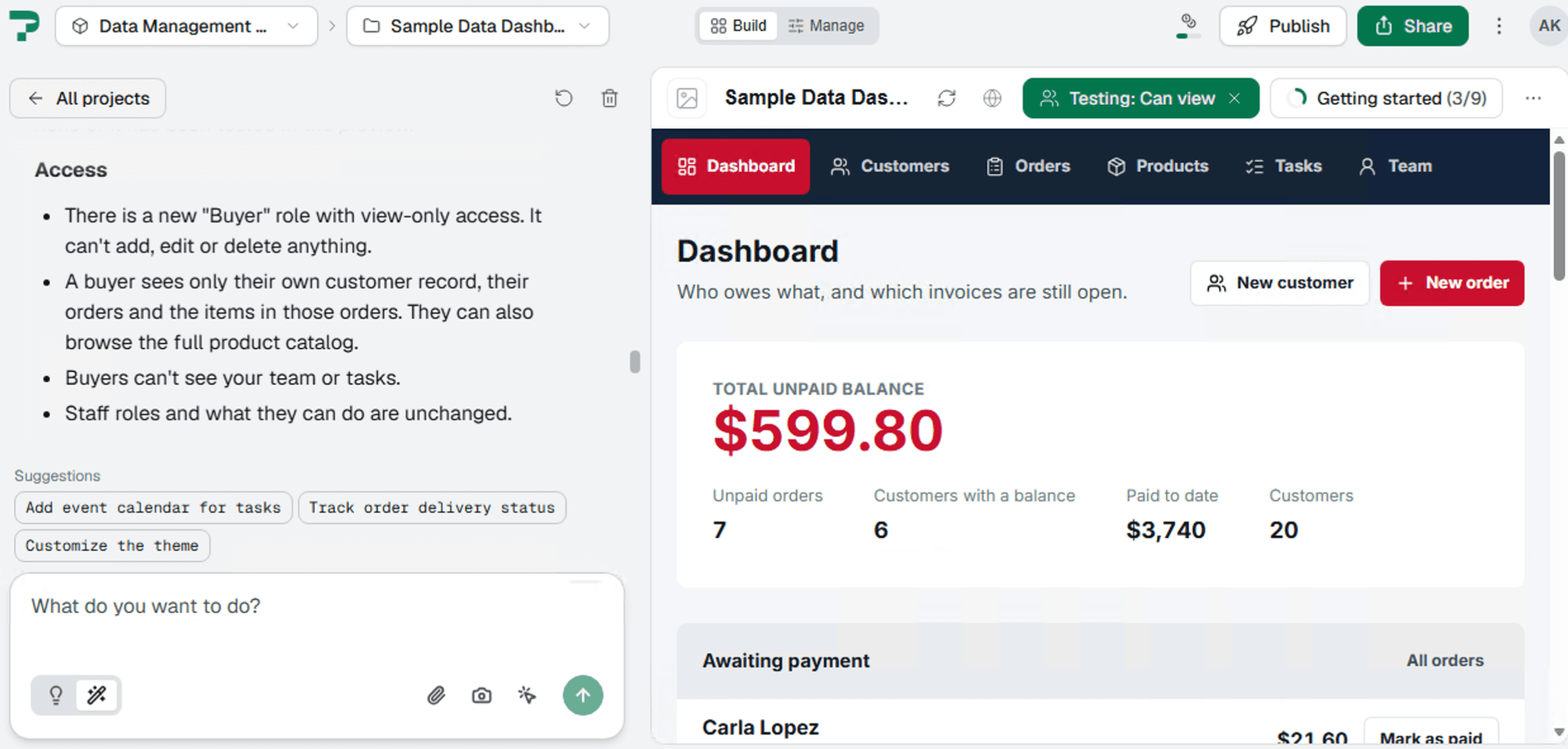
Deciding which AI app idea to pursue is the hard part. Luckily, going from idea-to-app is much easier with the right tool. Pave, the AI app builder from Quickbase, builds the app, its forms, and business logic from a simple description and connects to the tools the team already uses.
1. Describe Your AI App Idea
Tell Pave what the app should do the way you'd explain it to a coworker: who uses it, what comes in, and what should happen next. Pave builds the tables, forms, views, and dashboards in minutes. You can change anything later by chatting, editing fields directly, or rolling back to an earlier version.
2. Upload Data If You Have It
Got a spreadsheet that tracks your work today? Upload it, and Pave reads the columns, formulas, and links between sheets to propose tables, fields, and relationships. The data doesn't have to be perfect, and you can spot-check a few rows before you publish. Learn how to turn a spreadsheet into an app.
3. Connect Your Tools
Most AI app ideas need data to get rolling: invoices from your accounting system, tickets from your service desk, deals from your CRM. Pave connects to 350+ tools, like Salesforce, QuickBooks, Slack, Workday, and many more. See how to connect the tools your team uses.
4. Build AI Workflows
Pave turns a plain description of your process into a workflow that runs on a schedule or when something changes. Add the AI step where the app reads, sorts, drafts, flags, or answers, and a review step where a person checks the result. Pave draws each workflow on a canvas, and you can change it any time by describing what's changed.
5. Test Your AI App
Make sure to test your app before you roll out it to the team. Run the app on last week's invoices or tickets and compare its output to what your team did by hand. Bring in your most trusted team members to help you test, fix what's off, run it again, and publish when the results hold up.
6. Set Permissions, Publish, and Share
Publish the app when it's ready, then invite your team as Admins, Participants, or Viewers. Role-based permissions control who can see and change what, at the app or project level. Pave hosts the app, and you can keep building and publish updates when they're ready.
Bring Your AI App Ideas to Life with Pave
Each of these AI-powered app ideas follows the same story. Your team used to do a repetitive task by hand. Now an AI app takes the first pass, and a person reviews the result. Pave turns your idea into a working app with the forms, approvals, and workflows to run it.
Pick one idea, describe it in plain words, and build the first version in minutes. Start building free and only upgrade to paid plans if you need more.
FAQs
How can I create an AI app?
You can create an AI app by using a no-code AI app builder like Pave . Describe what it should do, give it the data it needs, add a step where a person reviews the AI's output, and test it on examples from your own work. That approach is often called vibe coding. Pave turns your description into an app with forms, approvals, and workflows, and keeps it in draft until you publish. Explore how Pave works or learn more about how hard it is to make an app.
How much does building an AI app cost?
The cost of building an AI app depends mostly on how you build it. Custom development with a developer or agency costs the most, since you pay for design, coding, testing, hosting, and upkeep. A no-code AI app builder lowers that cost because the tool handles the code and hosting, and most builders charge a monthly or usage-based fee. Pave lets you start building for free and you can compare Pave pricing when you need more. If you want to dive deeper, learn more about how much it costs to build an app.
Where does the data live when I build an app with Pave?
Your app's data lives inside Pave, in an integrated data layer that Pave builds along with the app. Pave creates the tables, fields, and relationships from your description or spreadsheet, and hosts the app on Quickbase's managed infrastructure, with no servers or databases to set up. You don't have to learn how to build a data layer from scratch, which leaves you free to focus on the workflows your app needs to run. You can still adjust tables and fields directly, and version history lets you roll back a change. To learn more about how it works behind the scenes, read our guide to relational database design.
Is my company data safe in an AI-build app?
Yes, when the AI app builder has guardrails like permissions, approved connections, and a record of every change. Pave builds those controls into every app. Admins decide who can view or edit each app, and every workflow and connection stays inside each user's existing permissions. One admin console shows every process and the systems it reaches. Pave encrypts credentials and logs every workflow run for inspection. See how Pave handles security and compliance.
Can AI-built apps be shared across my entire organization?
Yes. Pave gives IT the controls to run AI-built apps across departments, on a Quickbase platform that thousands of enterprises have trusted for more than 25 years. Admins set who can edit or view each app, and IT gets a chance to review every app before launch. Admins can limit which connectors are available, or restrict them to specific people. Start with one low-risk workflow, then expand team by team under the same rules. Read more about enterprise vibe coding.

Written by:Timothy Saari