How to Convert Your Spreadsheet to an App in 4 Steps

Spreadsheets are great for organizing information, but they're not designed to run your business. Turning your spreadsheet into an app creates a simpler way to manage your data without giving up what you've already built.
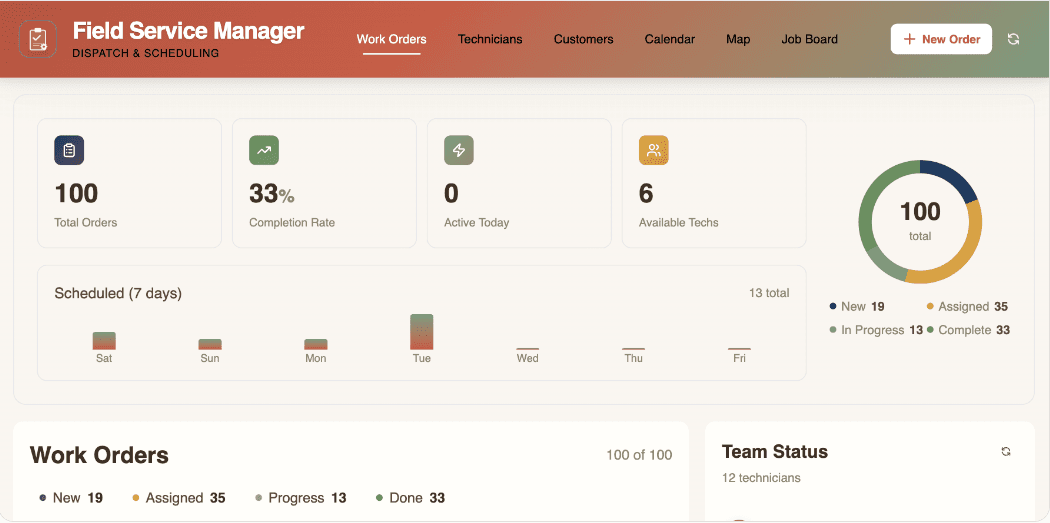
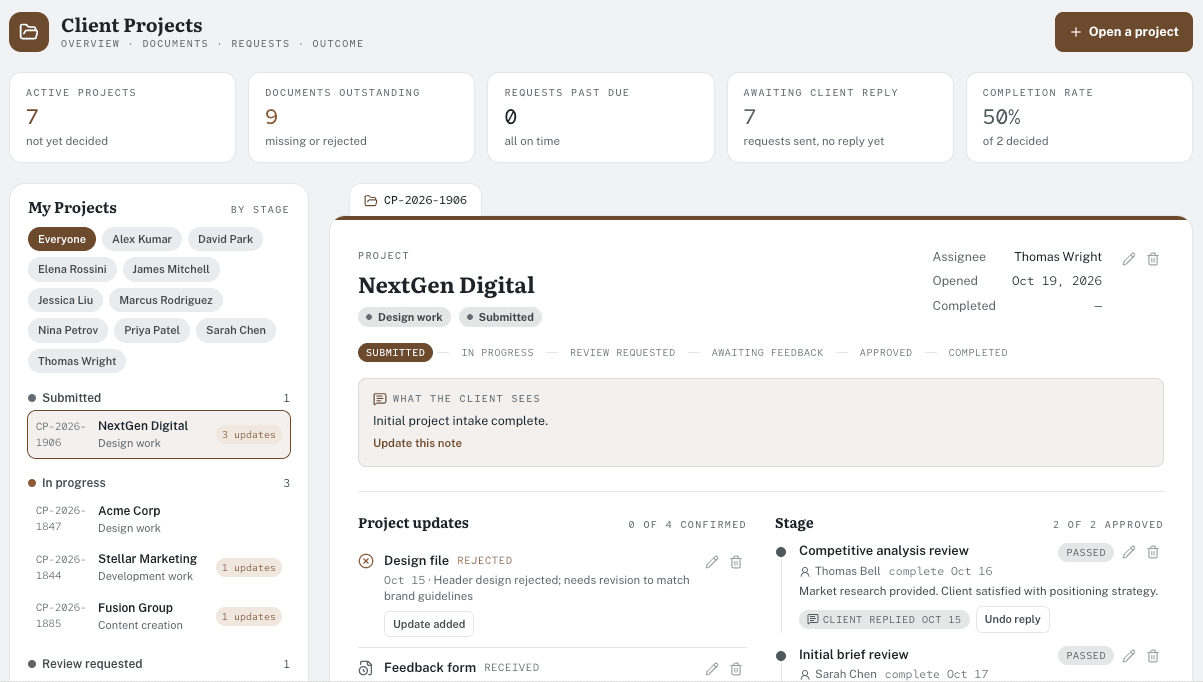
With Pave, you can turn a spreadsheet into a working app in minutes, without writing a single line of code. Just follow these four steps to make the switch.
Step 1: Define What You Want Your App to Do
Before you start importing your spreadsheet, identify the problem you want your app to solve. Ask yourself: Who will use the app? What do they need it to do? What outcome should it help them achieve?
Think less specific than "I want a CMS" or "I want my spreadsheet to do X." Instead, just articulate your problem how you'd describe it to your colleague. You can write it on paper or type it in a notes app. For example: "Our intake form leads to a spreadsheet, but it logs the info with the newest entries at the bottom. I need to be able to identify the new leads and use that info to send personalized emails to new leads."
Step 2: Prepare Your Spreadsheet Data

Clean data builds a better app, but it doesn't have to be perfect. Pave still allows you to build, even if your data isn't totally cleaned up. Here's how to prepare your data for spreadsheet-to-app conversion:
- Clean up your headers: Give each column one clear header in the first row and use consistent names across related sheets. For example, don't call a field "Client Name" on one tab and "Customer" on another.
- Be specific: Rename vague headers like "Column1" so it's clear what each field contains, such as "Order Number" or "Customer Address."
- Remove stray tabs and test data: Delete old duplicates, unused sheets, and tabs with names like "Sheet1 (FINAL) (USE THIS ONE)."
- Check your relationships: If multiple sheets reference one another, make sure they use the same identifying information (such as an account ID or email address). Consistency helps Pave understand how your sheets connect and build relationships between them.
Pave can also read formulas, formatting, and cross-sheet references during the import,
so you don't need a perfectly polished spreadsheet. However, it's important that your data is organized clearly.
For a deeper look at how Pave reads your spreadsheet to build tables and relationships, read more about how Spreadsheet Import works.
Step 3: Draft Your Prompt and Upload Your Spreadsheet

In addition to uploading your spreadsheet, a prompt tells Pave what to build in plain language. If your spreadsheet is clear enough, Pave can work from the file alone and doesn't need a prompt. But in most cases, a short and specific prompt helps Pave create exactly what you need.
Focus your prompt on four things:
- Type of app
- Main workflow or desired outcome
- Key fields or features
- Specific actions or automations required
Let's look at an example prompt for building a pipeline tracker:
Turn this spreadsheet into a pipeline tracker. Sales reps should see their own deals by stage (lead, qualified, proposal, closed). Add a field for deal value and expected close date.
You don't need to describe every column or explain how your entire spreadsheet is structured. Pave reads the columns, formulas, and relationships between sheets during the import. Then it proposes tables, fields, and connections that match what it finds. Use your prompt to describe what users should be able to do, who should see what, and what should happen next.
Step 4: Review and Publish Your App
Before you publish, Pave shows you the tables, fields, and relationships it pulled from your spreadsheet. Spot check a few rows against the original file and confirm that the relationships between tables look right. When you're ready to go live, approve the import and publish your app.
Here's what you'll unlock when you convert your spreadsheet to an app:
- Multi-user access: Your team can work in the same app at the same time without overwriting each other's changes or emailing versions back and forth.
- Permissions: Control who can view or edit different parts of the app instead of relying on everyone to stay out of the wrong spreadsheet tab.
- One source of truth: Keep your team's data in one place instead of hunting through files with names like "FINAL" or "FINAL_v2."
- Notifications: Alert the right people when something changes, so important updates don't get buried in a spreadsheet.
After publishing your app, you can edit your app by chatting with the AI assistant, or make quick changes on-the-fly using the Direct Edit feature.
Spreadsheet vs. App: Why Make the Switch?
Spreadsheets can handle straightforward data tracking, but growing teams and more complex workflows often require greater automation, control, and visibility. Here's how spreadsheets and apps compare:
| Spreadsheet | App |
|---|---|---|
Multiple people editing at once | Risky (overwrites, version conflicts) | Built in |
Who can see or change what | All-or-nothing sharing | Field- and record-level permissions |
Structure and ease of use | Limited to templates | Flexible building options |
Alerts when something changes | Manual, easy to miss | Automatic notifications |
Handles related data across files | Manual VLOOKUPs, broken links | Reads relationships automatically |
Scales past a few hundred rows | Slows down, breaks formulas | Built to grow |
Convert Your Spreadsheet Into an App With Pave
.png&w=3840&q=75)
Your spreadsheet already holds the hard part: the data. Building a custom app unlocks what a basic spreadsheet can't. You can set up role-based permissions, multi-user access, centralized dashboards, and a solid foundation that scales. Pave takes your hard work and builds a fully functional app so you can focus on building up your business.
Not sure where to start? Check out the Pave App Gallery or get inspired by our Paveathon winners who turned their day-to-day challenges into working apps.
Start building for free at quickbase.com/pave.
Spreadsheet-to-App Conversion FAQs
Can I turn an Excel file into an app?
Yes. Just upload your Excel file to Pave, and it will read the columns, formulas, and sheet relationships to build a working app around your data.
Do I need to know how to code?
No. Describe what you want in plain language, and Pave will build the app directly from your spreadsheet. Just describe what you need; no coding experience required. If you're interested in diving deeper, read more about how Pave solves enterprise vibe-coding.
How does a spreadsheet-to-app builder work?
A spreadsheet-to-app builder reads your spreadsheet's columns, data types, formulas, and cross-sheet references, then generates tables, fields, and relationships that match. In Pave, you can simply type in what you need, upload your file, and generate a fully functional app in minutes. Learn more about how Pave's Spreadsheet Import works.
Is my spreadsheet data secure in an app builder?
Yes. Pave is built on a 25-year-old platform trusted by thousands of enterprises with security and governance built in from day one. It features role-based permissions, a detailed activity feed, connectors that respect your pre-set permissions, and an intuitive admin console governing it all. Learn more about how Pave works, including its approach to security and compliance.
Can I make changes to my app after publishing?
Yes, you can make changes to the app any time by clicking "Edit Project" in the Admin Toolbar in the top left corner of your screen. You can also make quick changes using the Direct Edit feature.