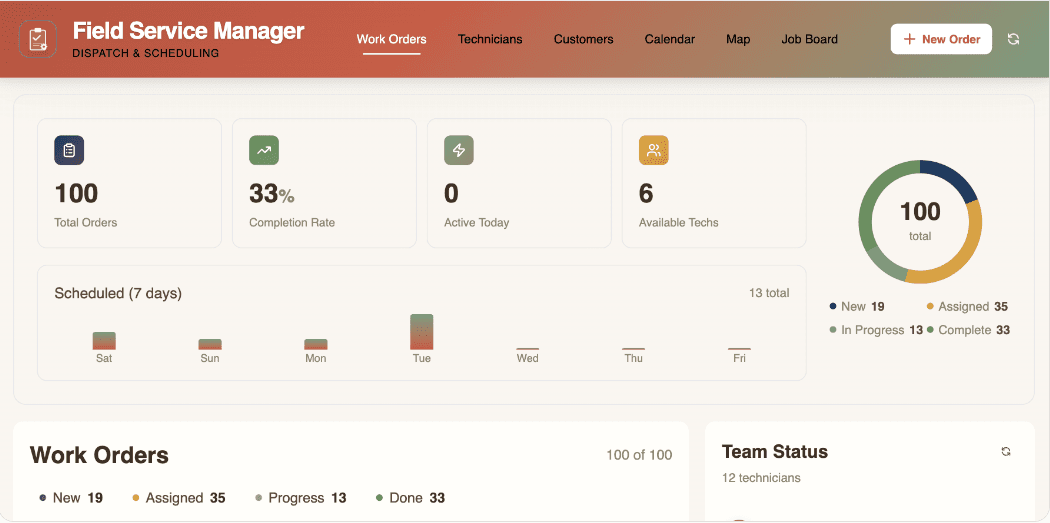
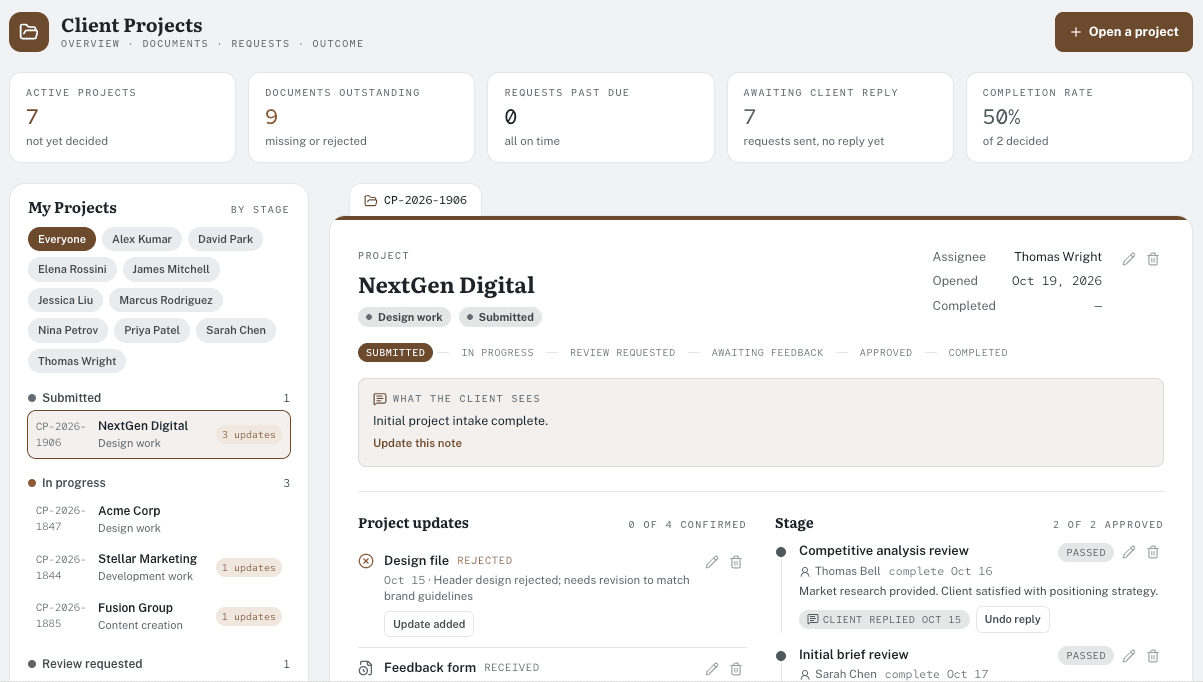
App Gallery: Don't Start from Scratch, Start from Here
The blank prompt is its own kind of paralysis. You know the process that should be running better. You've watched the team duct-tape around it for months, from the spreadsheet that's running your project to the approval that lives in somebody's inbox. But sitting down to describe the whole fix from scratch, in the right words, on the first try? That's more challenging than you'd think. Most of us don't have the words ready right when the cursor is blinking.
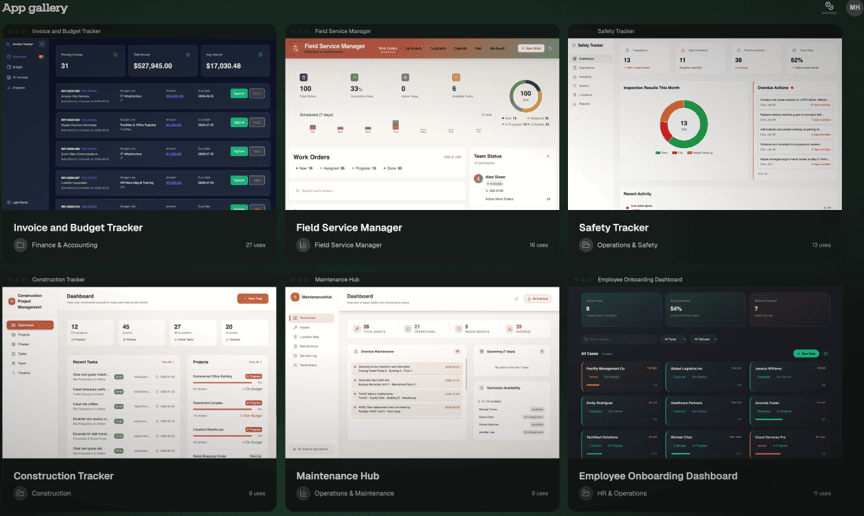
So, we built somewhere better to start. The Pave App Gallery are a shelf of working operational apps you can browse, preview, and deploy in under a minute. Find one close to the problem you're staring at, click once, and get your own running copy in your workspace. Don't start from scratch. Start from here.
How It Works
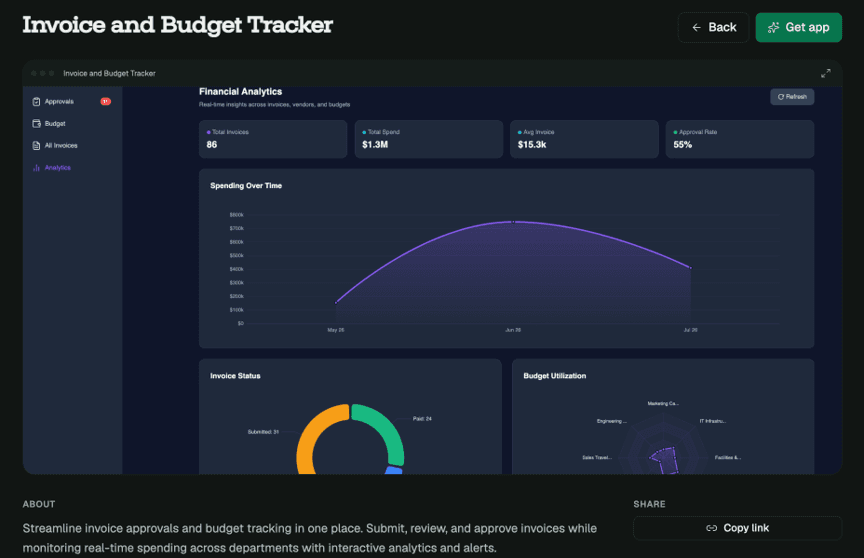
Open Pave, and the App Gallery is right there underneath the prompt box. Find one you like and click into it to take a look before you commit: what it does and how many screens and tables it includes. When you're ready, hit Get App. Pave spins up your own running copy, loaded with realistic sample data so it feels finished the second it opens. Each one comes with multiple roles built in, including a manager view and an end-user view, so the teammate you invite sees something useful too. Finally, a new tab opens with a working app.
The kicker? This part is free. Even with zero credits, you can deploy as many apps as your plan allows for. Installing a finished app doesn't run the AI, so it doesn't consume credits.
Built by Pave, Made to Run
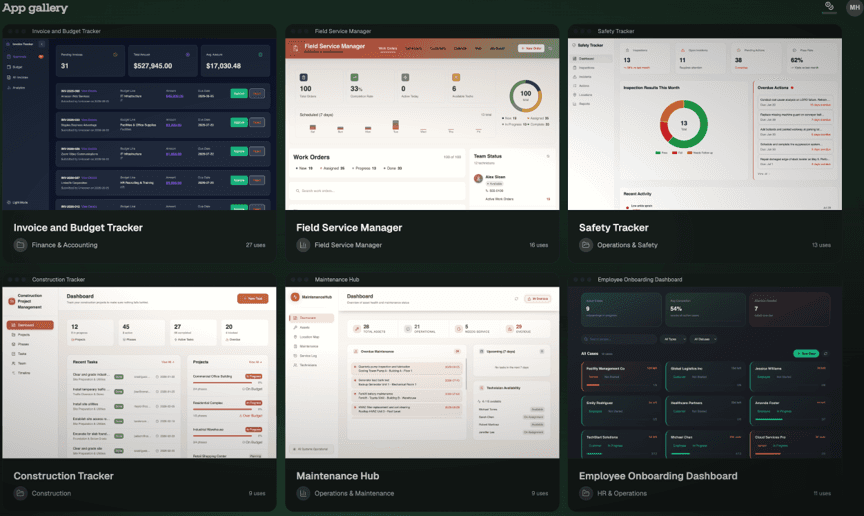
The App Gallery launches with 9 working operational apps, covering the jobs people ask for most. Every one is built and vetted by the Pave team. Each is a governed operational app that runs the work:
- The work order tracker your service crew is running out of a group text.
- The sales pipeline tracker that's sitting in a spreadsheet.
- The vendor invoices and budget you're reconciling from your email inbox.
We'll be continuing to curate apps in the coming weeks and months, so keep an eye out!
Then Make It Yours
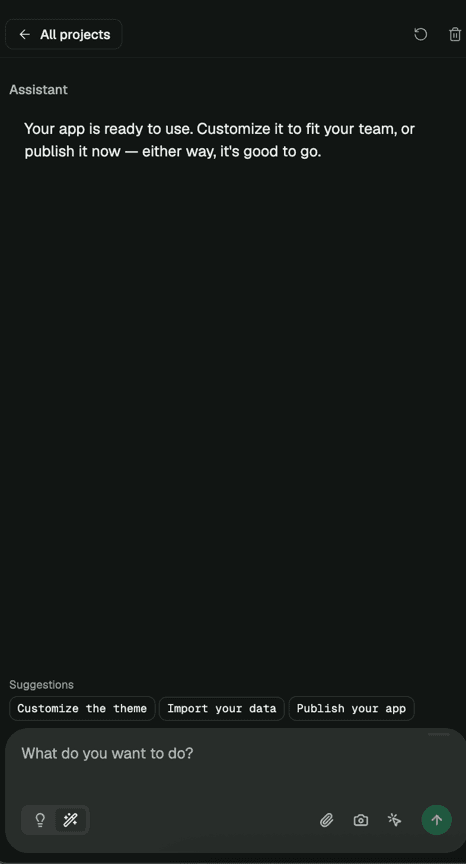
A deployed app is only the starting line. The next move is making it yours. Once your app is copied, you are able to customize it. From there, tell it what to change in plain language: "tailor this for marketing," "add an approval step," "rename these columns for HR," "make this work for our Friday close." Iterate to your heart's content, then deploy. Remember, customizing runs through the AI, so that part uses credits.
The Blank Page Was the Whole Problem
The hardest part was never the building. It was the blank page, the "where do I even begin" that sends people back to the broken process they know. The App Gallery takes that away. You start from something that runs, see how it works, then shape it to fit. The fastest way to a working app isn't always a better prompt. It's a first step that's already paved.
Try It
The App Gallery is available below the prompt box once you log in to Pave. Start from a working app at quickbase.com/pave.

Written by:Michelle Hendley