How to Build an Inventory Management Database

An inventory management database is a system that organizes information about products, suppliers, stock levels, and locations into connected tables that work together to keep records consistent in real time.
Many businesses start out tracking inventory in spreadsheets or even on paper, but as inventory grows, stock counts become harder to reconcile, and employees spend more time updating records. Because they're configured to update quantities as transactions are recorded, inventory databases give businesses an up-to-date view of what they have in stock and where it's located.
Sounds great, right? And the good news is you don't have to be technically savvy to build your own database for an inventory management system. Here's a guide with everything you need to get started.
Key Takeaways
- An inventory management database organizes products, suppliers, stock levels, and locations into five connected tables instead of scattered spreadsheets.
- Stock levels update automatically when a transaction is recorded, so every delivery, shipment, or adjustment stays tied to a timestamped history.
- An inventory database needs five tables: Products, Locations, Suppliers, Stock Levels, and Transactions — each linked by shared identifiers like SKU and Location ID.
- AI app builders can generate this structure from an existing spreadsheet or PDF with a plain-language description.
What an Inventory Management Database Tracks
An inventory management database tracks all the information connected to your stock, including products, suppliers, transactions, inventory levels, and storage locations. Keeping these records organized and connected helps you make better purchasing decisions and identify conflicting stock counts.
For example, a hypothetical small distributor tracking stock across two warehouses would need to organize information such as:
- Products: A listing of product names, pricing, descriptions, SKUs, barcodes, QR codes, and reorder points, organized by category
- Stock levels: The quantity of each product in stock, including what's on display, in the warehouse, or reserved for orders
- Locations: Where products are stored, including the warehouse, aisle, rack number, or bin
- Suppliers: A record of vendors with their contact details, lead times, pricing, and order history
- Transactions: A record of inventory received, shipped, transferred, or adjusted, including sales, returns, and write-offs
The distributor could track all this information in spreadsheets, but stock levels, supplier details, and transactions can easily take up one wide spreadsheet or several separate files that quickly become unwieldy. Spreadsheets make it harder to keep product information consistent and know which stock counts are up to date.
Database software provides a more efficient, accurate way to manage inventory records than spreadsheets or handwritten records. It connects all inventory records so you don't have to enter the same information in multiple places, and can be configured to automatically update stock quantities as transactions are recorded, giving you a current view of what's available at each location.
The Tables and Fields You Need
An inventory management database should typically include five tables, one for each category: products, locations, suppliers, stock levels, and transactions. Within each table, include fields for relevant details such as product specifications, warehouse addresses, vendor contact info, and movement dates.
If you're currently working with spreadsheets, this setup will look familiar. Each database table is like a separate spreadsheet tab, with columns (fields) for details such as product names and prices, and rows for individual records.
For example, our small distributor tracking inventory across two warehouses would include five tables.
Table | What It Tracks | Unique Identifier | Key Fields & Connected Links |
Products | Fixed product details and catalog specifications | SKU or Product ID | Product Name, Description, Category, Unit Cost, Selling Price, Reorder Point, Unit of Measure, and Supplier ID (links to vendor) |
Locations | The physical facilities where inventory is housed | Location ID | Facility Name (Warehouse A, Warehouse B), Address, Capacity, and Facility Manager |
Suppliers | Vendor profiles and ordering terms | Supplier ID | Company Name, Contact Name, Email, Phone Number, Payment Terms, and Lead Time |
Stock Levels | The current count of a specific item at a specific facility | Stock Record ID | Quantity on Hand, Bin/Aisle Location, SKU (links to product details), and Location ID (links to facility) |
Transactions | A time-stamped history of every stock movement | Transaction ID | Date, Movement Type (Received from Supplier, Shipped to Customer, Transferred, Adjusted), Quantity (+ or -), Staff Name, SKU, and Location ID |
How the Tables Connect
In a relational database, connected tables can automatically update stock quantities as staff record sales, write-offs, and supplier deliveries, keeping inventory counts current at each location.
For example, when the distributor receives 50 units of a product at Warehouse A, the delivery is recorded in the Transactions table, and the stock balance for that product and location increases by 50. If three units are damaged, an adjustment transaction reduces the balance by three without erasing the original delivery record.
When inventory is calculated from transactions rather than manual input, stock counts update in real time so you can see current inventory at each location and track the transactions behind every change.
Inventory Database Example: Design & Schema
For our hypothetical distributor, the inventory database connects product and supplier information to stock records and transactions at each warehouse. The diagram below shows how the five tables connect through shared identifiers.
The table below shows how the distributor's packing tape (SKU TAPE-01) is recorded across the five connected database tables.
Table | Example record | How it connects |
Products | TAPE-01, Packing Tape, Reorder Point: 20 | Supplier ID links to Suppliers |
Suppliers | SUP-01, Packaging Supplier | Supplier ID identifies the supplier |
Locations | WH-A, Warehouse A | Location ID identifies the warehouse |
Stock Levels | TAPE-01, WH-A, 12 rolls | SKU and Location ID link to Products and Locations |
Transactions | TAPE-01, WH-A, Delivery, +50 rolls | SKU and Location ID identify the product and receiving warehouse |
How to Build an Inventory Management Database in 4 Steps
You can turn your existing inventory records into an inventory database with an AI app builder that lets you build without writing a single line of code. Here's how the distributor could build an app to manage inventory across both warehouses.
Step 1: Prepare Your Existing Inventory Records
Start by gathering your current inventory spreadsheets and files. Review them to make sure:
- Inventory counts and supplier details are up to date
- You have the data needed for all five tables listed above
Let's look at our hypothetical distributor example. They currently track packing tape and other products across its two warehouses in one spreadsheet, with supplier details and separate quantity columns for each location.
However, the spreadsheet is missing supplier contact names and email addresses, along with useful ordering details such as minimum order quantities and lead times. The distributor should gather this missing information because they'll need it when building the database.
Step 2: Create and Connect Your Database Tables
Next, upload your existing spreadsheet and describe the inventory app you want to build in your own words. For example, the distributor might enter the following prompt:
"Build an inventory management app for a small distributor tracking stock across Warehouse A and Warehouse B. Use my uploaded spreadsheet to create five connected tables: Products, Locations, Suppliers, Stock Levels, and Transactions. Include the product SKUs, supplier details, warehouse quantities, and reorder points from the spreadsheet."
The platform then generates the initial database that powers your app based on your instructions and spreadsheet data. You can also build your inventory app from scratch by describing what you need without uploading a spreadsheet. For a closer look at the spreadsheet-based approach, see our guide on how to convert a spreadsheet into an app.
Once your initial database is ready, review all five tables to verify that the information is accurate and your records are connected correctly. Pay close attention to the Stock Levels table to make sure each product's quantities are associated with the correct warehouse.
Check that each product has a separate stock record for each warehouse where it's stored, with both records linked to the correct product. If a connection is missing or incorrect, you can ask Pave to fix it with a prompt like the one below.
"Make sure each Stock Levels record is linked to the correct product in the Products table and warehouse in the Locations table."
Step 3: Set Up Inventory Tracking Through Transactions
Now that your database tables are connected, the next step is to set up a way for warehouse staff to record inventory changes. Ask Pave to create a transaction-entry form where they can select a product, warehouse, transaction type (delivery, shipment, or transfer), and quantity.
Tell the builder how each transaction should affect inventory counts, using a prompt like the one below.
"When a delivery is recorded, add the quantity received to that warehouse's stock. When a shipment is recorded, subtract the quantity shipped. For transfers, subtract the quantity from the sending warehouse and add it to the receiving warehouse. Save each transaction in the Transactions table."
You can test your setup using our distributor's packing tape example. Record a delivery of 50 rolls of packing tape (SKU TAPE-01) to Warehouse A. Check the Stock Levels table to confirm that Warehouse A's quantity increases from 12 to 62 rolls, while Warehouse B stays at 45. Then check the Transactions table to make sure the delivery was recorded.
Step 4: Create a Low-Stock Reorder View
Finally, create a filtered view that shows which products need replenishment. Use a prompt like the one below.
"Create a low-stock view showing any products whose quantity falls below the reorder point. Include the product name, warehouse, current quantity, reorder point, and supplier contact details."
Here's how the view would work for the small distributor:
- Before restocking: Warehouse A has only 12 rolls of packing tape against a reorder point of 20, so it appears in the low-stock view with the supplier's contact details. Warehouse B has 45 rolls and stays off the list.
- After restocking: Once the 50-roll delivery from Step 3 is recorded, Warehouse A's stock increases to 62 rolls, automatically removing packing tape from the low-stock view.
The distributor can now see which products need reordering at each warehouse, along with the supplier information needed to replenish them.
Common Mistakes in Inventory Management Database Design
Even the best database for inventory management runs into issues when not set up correctly. These issues come up most often when teams move from spreadsheets to a connected database, and they're easiest to fix before the tables are built.
Keep an eye out for these pesky pitfalls:
- Direct edits to quantities instead of recording a transaction, which erases the history behind a count
- One giant table instead of five connected tables for products, locations, suppliers, stock levels, and transactions
- Locations treated as columns (a separate quantity column per warehouse) instead of a dedicated Locations table
- No standard unit of measure, so the same product gets logged in boxes, rolls, or cases depending on who enters it
- No reason required on adjustments, making it hard to trace why a count changed later
- No limits on who can edit stock levels directly, instead of restricting edits by transaction type
- Inventory database schema built before the team agrees on what counts as a transaction, which forces a rework once staff start using it
That last one causes the most rebuilds: settle what a "transaction" means for your business before the tables get built around it.
Build Your Custom Inventory Management Database with Pave
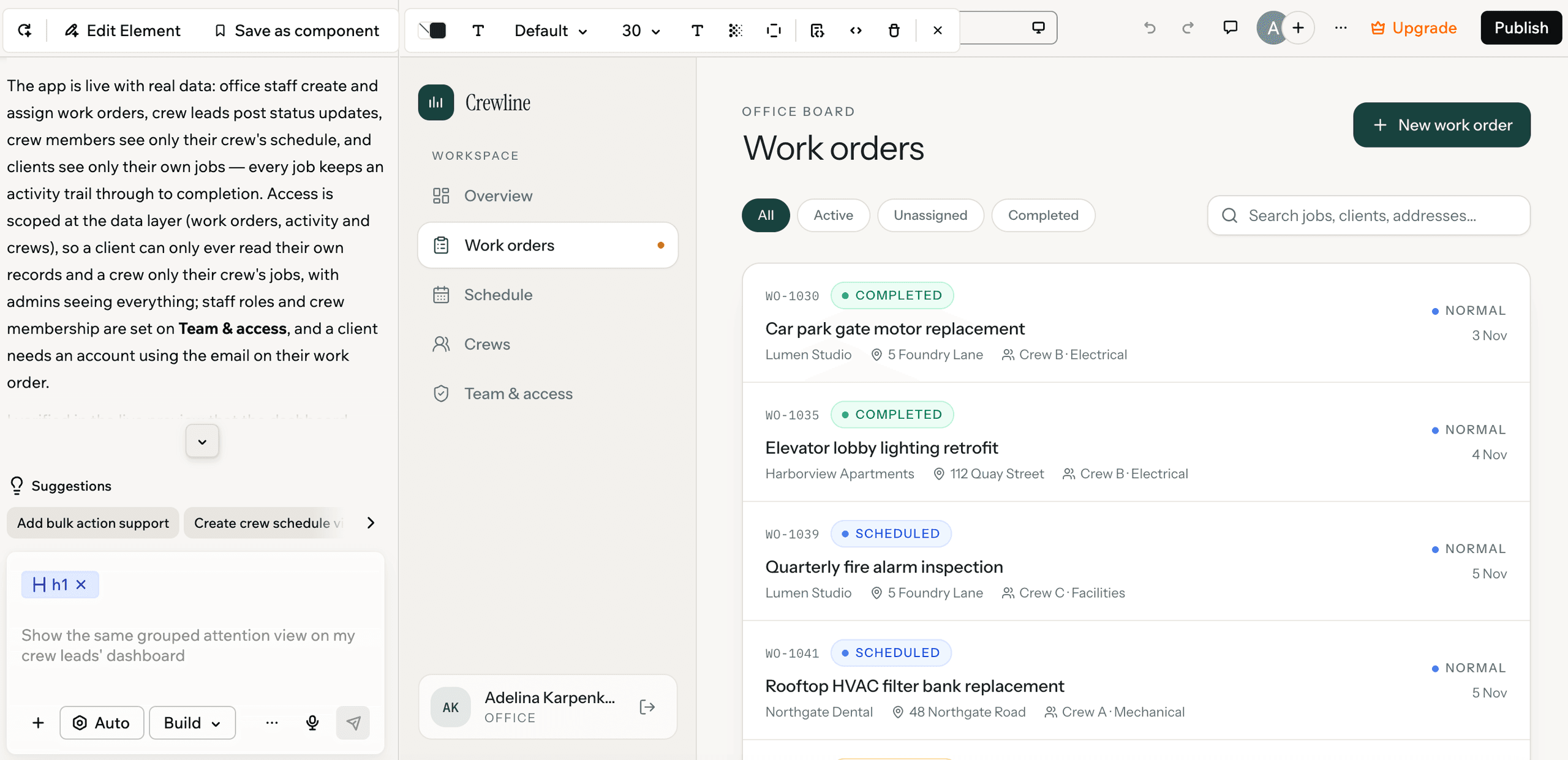
Pave, the AI app builder from Quickbase, lets you describe your own custom database for inventory management from an existing spreadsheet, PDF, or totally from scratch. Apps include roles, permissions, hosting, and 350+ connectors that can automate workflows between your tools. Easily adjust your app through prompts or by editing it directly so your app can scale with you.
Build Your Inventory Management App Free
FAQs
What is the difference between an inventory spreadsheet and an inventory database?
An inventory spreadsheet stores information in rows and columns, while a relational inventory database organizes information into connected tables. Both can track stock levels, but a database makes it easier to manage relationships between products, suppliers, locations, and transactions without repeatedly entering the same information.
Does an inventory management database run on the cloud?
Most databases for inventory management systems run in the cloud, so you can check stock, record transactions, and look up suppliers from any device, anywhere. AI app builders like Pave host the database for you, with no servers to manage. For more, see our guide to cloud inventory management.
What should I do when my physical stock count doesn't match the database?
Investigate the discrepancy, then record an inventory adjustment to correct the database. Check recent deliveries, shipments, and transfers for missing or incorrect entries. Once you identify the difference, record the adjustment with a reason, such as damaged goods, shrinkage, or a counting error.
How do I calculate a reorder point for inventory?
Calculate a reorder point by multiplying average daily demand by supplier lead time in days, then adding safety stock. For example, if you sell five units daily, your supplier takes four days to deliver, and you keep 10 units as safety stock, your reorder point is 30 units. You can store this value in your database and use it to identify products that need replenishment.
How can I prevent duplicate product records in my inventory database?
When building out your inventory database design, configure your database to require unique SKUs for every product to prevent users from creating multiple product records with the same identifier.
How do I track damaged or returned inventory in my database?
Record damaged and returned items as inventory transactions, with a reason and the quantity affected. You can also add fields to distinguish sellable stock from damaged or returned items awaiting inspection, to help keep unavailable products out of your usable inventory counts.
Is my data safe in a custom-built inventory database?
Pave runs on the Quickbase Database platform, trusted by organizations for over 25 years. Each app features role-based permissions control who can see or change your data, every connector's credentials stay encrypted and run server-side, and an admin console gives IT visibility into every workflow and connection your team builds. Learn more about Pave's security and compliance.

Written by:Mikala Holmgreen