What Is a Client Portal? Examples & How to Build One
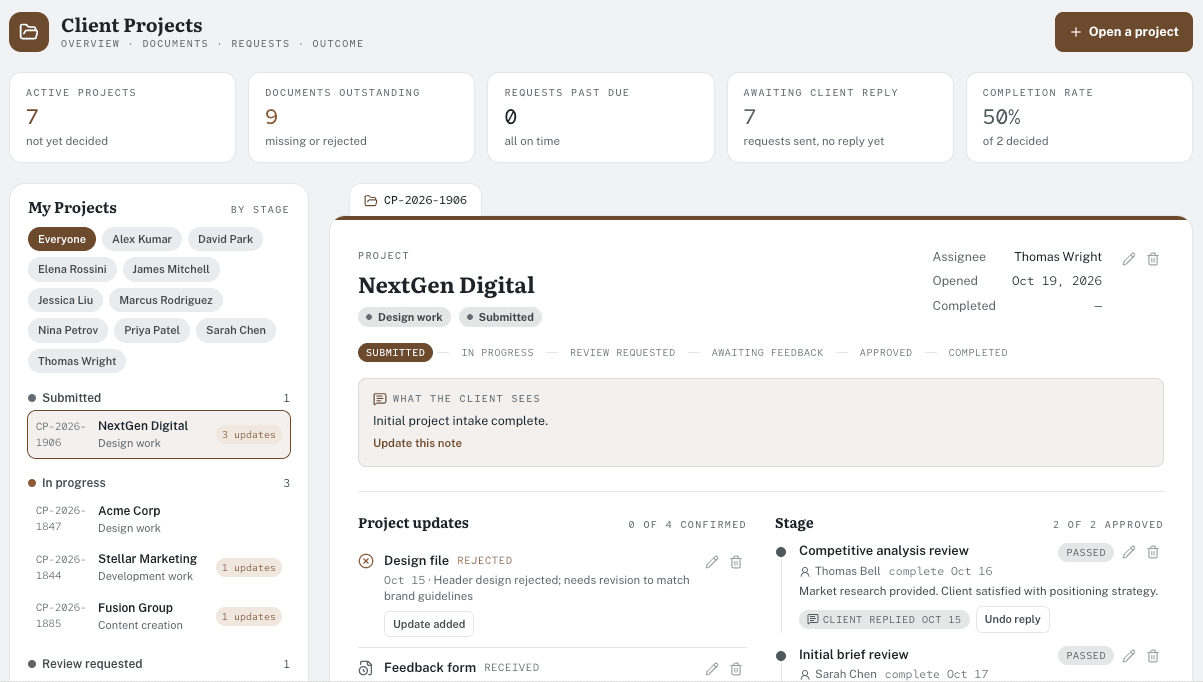
A client portal is a web-accessible space where authorized clients can see relevant information and complete permitted tasks with your business. Features vary depending on what clients need to see, do, and manage through the portal.
Without a client portal, clients and team members may have to navigate scattered files, folders, and storage tools to find information or respond to requests. Sound familiar? If so, you already know this can get messy fast. Complex processes and disorganized tools make it harder to manage and increase the risk of using outdated documents or exposing sensitive client information.
A client portal streamlines these processes, improves security, and offers a better user experience by bringing all necessary documents and tools together in one place. Here's everything you need to know to build your own.
Key Takeaways
- A client portal gives clients one secure platform where they can access information and complete tasks.
- There are many types of client portals, including customer self-service portals, partner portals, vendor portals, account management portals, and more.
- Every client portal should include up-to-date information for clients and offer detailed access control to maintain data privacy.
- Look for a client portal platform with built-in security and granular permissions to ensure compliance.
Client Portal vs Website and Shared Folders
Client portals combine the most relevant elements of a website, shared folder, and help center. Although these platforms have their uses, they may not provide everything your clients need to access information, exchange documents, and manage ongoing work.
Here's how each platform differs from a client portal:
- Public website: Your website is accessible to clients, potential clients, and the general public. Visitors are limited to actions like reading or downloading resources, watching videos, or booking a demo.
- Shared folder: Your team can use folders to share files with each other and with clients. Accessing a folder requires either a login or direct link, and specific permissions can be granted on a file-by-file basis. Permissions aren't easy to monitor, so you can quickly lose track of who has access to what.
- Help center: Most help center information is accessible without a login, so current and potential clients can access resources like FAQs, articles, or videos. Existing clients must create an account to submit support tickets or access premium support.
- Client portal: Accessing a client portal requires secure logins for each user that limit the scope of information they can see or change. Access is limited to your internal team and existing clients and can be controlled at a granular level.
Compared to other options, a client portal provides the easiest, most secure way for clients to interact with your business.
Client Portal Examples
Every action a client takes inside a portal triggers an internal step to move the task to the next phase. Here's what common actions and their internal follow-ups look like in practice:
Client Task | Client Action | Related Record | Internal Next Step |
Get a document approved | Review proposed design | Approve | Move project forward to build phase |
Send a service request | Get help with a recurring error | Ticket created | Assign ticket to appropriate team member |
Complete onboarding | Provide vendor details | Intake form | Make sure the vendor filled all required fields |
When a client completes an action or makes a request, notifications go directly to the person responsible for the next stage of the process.
Benefits of Client Portals
Client portals take time and care to build, but the payoff is worth it for both your business and your clients.
1. Stronger security
Granular access controls, such as role-based access (RBAC), minimize points of vulnerability and reduce the risk of unauthorized access. RBAC restricts what clients can see and do based on their roles, so each person can access only what's required to do their jobs. Admins can set and revoke permissions as needed to maintain security.
2. Scalable structure for growing businesses
A portal makes it easier to handle a growing client base, so you can scale without getting buried in a mess of emails, documents, and folders. Once you invite new clients to the portal, they can complete onboarding on their own right inside it, and existing clients have ready access to important information like help documents or project timelines. This allows you to take on more clients while spending less time on the administrative side of client management.
3. More efficient workflows
Client portals allow you to create workflows that reduce or eliminate common bottlenecks. Having relevant documents, information, and communication tools in one place cuts down on time spent sifting through data scattered across multiple platforms. You can also build custom workflows that automatically trigger specific notifications or actions in response to clients' activity inside the portal. This keeps projects and communications moving and ensures that clients always get the help or answers they need.
4. Better communication and document sharing
Messaging and document sharing are typically handled with a combination of tools and platforms. But with a client portal, everything happens in one place. No more emails getting lost in bottomless inboxes or documents disappearing because someone accidentally deleted them. Clients and internal teams can easily communicate inside the portal to open and resolve tickets, ask and answer questions, or share and access progress updates.
5. Improved visibility and management
Client portals include customizable dashboards where clients can review important details at a glance. For internal teams, features like notifications and progress updates simplify tracking and follow-up. Tasks can easily be assigned or moved to the next step, timelines can be adjusted, and bottlenecks can be addressed so nothing gets missed or stuck in limbo.
Key Features: What a Useful Client Portal Needs
Your client portal should include four key elements:
- Up-to-date information: Make routine updates to client records, product information, and help documents. Keeping records current ensures your clients and team refer to the same details so no one gets confused.
- Permitted actions: Know what tasks your clients and team need to perform, and set clear permissions that prevent accidental or unauthorized access to unrelated files and tools.
- Ownership: Maintain a list of which team member controls each client account and the extent of the actions they're responsible for, such as adding or removing users, modifying access permissions, or updating and deleting documents.
- Access: Make sure each client and team member has only the level of access they require to complete essential actions. Review and update access rules regularly to minimize security risks.
Security & Compliance Considerations
The platform you choose for building your portal must have strong security measures to minimize risk and ensure compliance with data privacy regulations. Features like data encryption, strong authentication methods, and detailed access controls keep client data safe from unauthorized access or theft.
Platforms should also include logging and monitoring to create an audit trail that supports compliance. Logs track key details like what actions each user takes, what data or files they accessed, and what changes they made. Admins can use these logs to identify potential security risks or spot patterns that indicate suspicious internal or third-party activity.
But for security to stay reliable, the platform's tools must respect permissions. If authorizations are undermined or bypassed while your team is building the portal, it could create significant vulnerabilities within workflows and leave client data exposed.
Pave, the AI app builder from Quickbase, builds in security and compliance from day one. It includes RBAC, an activity log for every workflow run, and an admin console that gives IT a single view of every app, connection, and permission. Workflows stay inside each user's existing permissions, so automation never bypasses the access controls you've set.
How to Build Your Client Portal in 7 Steps
Building a client portal involves seven steps that guide you through creating, testing, and implementing a design that supports your client's primary tasks. A successful portal will maximize security, simplify client interactions, and optimize internal processes.
As you follow these steps, keep interoperability in mind. The platform you choose for your portal needs to support the tools, file formats, and devices your clients need and those your team uses. Clients should be able to complete every necessary action inside the portal without bottlenecks or errors.
1. Choose One Client Job
Identify your clients and their primary requirements. Typical client portal functions include:
- Account management
- Document organization, management, and sharing
- Project management
- Inventory management
- Vendor management and communications
- Customer support
Zeroing in on one job keeps the portal and its workflows useful for your client and manageable for your team.
2. Map the Data and Actions
List the actions your clients will need to take based on the job you identified. What information, documents, knowledge base articles, tools, or other resources do you have to include in your portal to support these actions? Who needs access to what, and at what level?
Remember to consider the internal actions associated with client requests. Include all the necessary information and set appropriate permissions to simplify their work.
3. Select a Platform Against Those Requirements
Use the client job and associated actions as a guide to evaluate potential platforms for your portal. Consider features like:
- Supported use cases
- Native and custom integration options
- Security and access controls
- Implementation and onboarding processes
- Cost and pricing structure
You should also consider ease of use and time to launch. When you use an AI app builder like Pave, it lets you describe your process in plain language and build a custom business app with data, user permissions, and workflows tailored to how your team works. Make sure to compare platforms closely to ensure you're hitting all your requirements without paying for features you don't need.
4. Define Authentication and Authorization
Determine how users' identities will be verified prior to gaining access to the portal and its functions. For example, you may require a code from an authenticator app in addition to a password to confirm a user is who they claim to be.
Once they're logged in, users must be authorized to take actions or view resources. Different types of users can perform different actions based on their roles:
User/Information | Customer Details | Documents | Invoice Details |
Administrator | Read, write, share, delete | Read, write, share, delete | Read, write, share, delete |
Account Team | Read, write, share | Read, write, share, delete | Read, write, share |
Client | Read or update their own account | Read, write (on a file-by-file basis) | Read |
The Open Source Foundation for Application Security (OWASP) suggests taking these measures to control access and maximize security:
- Least privileges: Allow users to access only what they need.
- Deny access by default: Grant access to new features, tools, files, or information only as required.
- Review default settings: Make sure the portal doesn't automatically grant universal access to any action or information. Update the settings to support appropriate access levels for each user.
- Be consistent with authentication and authorization: Have one method to verify identities on login and clear rules for granting access.
- Consider switching to attribute-based controls: Role-based access can leave vulnerabilities if a role is left vacant, someone new is hired, or an existing role is updated to expand or restrict duties. Attribute-based access considers details like time of day, project name, or file status before granting authorization.
5. Configure the Client View and Internal Follow-Up
Set up the client-facing experience, paying particular attention to user experience (UX). Design workflows to make every action as simple as possible so clients can complete tasks without confusion or delays.
For the internal side of the portal, set up the necessary workflows, access controls, triggers, notifications, and handoff rules. Consider the next steps for each client action, including who handles what and what communication or sharing is necessary, and design each process accordingly.
6. Test With Separate Client Identities
Use the portal from the perspective of each potential client type to test:
- Security and access: Could Client A accidentally circumvent permissions and access Client B's records or files through another route, like a direct link? Does unauthorized access trigger an internal alert? Is it easy to review access controls, permissions, and authorizations regularly?
- Stale information: What happens when a new version of a file is uploaded? Who gets alerted when files are out of date or duplicated?
- Notifications: Do client and internal actions trigger the right notifications at the right times? Are alerts and messages automatically resolved or moved to the next step when someone completes them?
- Failed submissions: What actions trigger errors, and what messages appear when something goes wrong? Are the processes for fixing each error clear, and do they work?
- Handling exceptions: Are your authorization procedures safe and secure? How do overrides or changes to permissions work? How are exceptions revoked once access is no longer required?
7. Pilot With a Small Group
Before launching the portal for your whole client base, do a pilot run with a small number of users. Reach out to a group of loyal, long-time clients, and onboard them for a short test period, such as 30 days.
As clients test the portal's features, watch for places where they get stuck. Note any workflow bottlenecks, recurring errors, or repeat support requests. Gather feedback at intervals from the pilot group and your internal team for insight into less-visible issues. Pay particular attention to access so you can catch potential security problems early.
Use what you observe and learn to update the client portal prior to the official launch. Continue to monitor performance and support requests once the portal is live, and make improvements as needed.
Connect Client Experience to Your Workflows with Pave
Maintaining client relationships is one of the most important parts of your business. That's why client actions need to connect directly to internal workflows so you can track progress in real-time, handoffs go smoothly, and nothing gets missed. The good news? You can build your own custom client portal solution with Pave, the AI app builder from Quickbase.
Start by describing what you need, such as inviting new clients by email and automatically updating your CRM while triggering notifications to the billing department and onboarding team. Add any necessary supporting documents, and Pave generates the UI along with the data model, permissions, and workflow logic. You can use additional prompts to adjust the portal to your client's needs or edit specific details manually.
Use Pave's Workflows and Connectors to create automated flows that follow the exact procedures your team already uses. Workflows turn complex handoffs into repeatable processes that execute in the background in response to client actions. Connectors link your portal to 350+ business tools so data flows in and out of the systems your team already uses. Workflows define the automation logic that determines how the portal responds to each action.
Your team will never have to dig through other tools or shared folders again. Pave ensures that actions trigger the appropriate follow-up sequences within the portal. The right people get notified, the proper records get updated, and your clients get help or answers faster.
Ready to build your own client portal? Try Pave for free today.
FAQs
What is a client portal?
A client portal is a secure, web-based space where clients can access information and complete tasks with your business. Instead of bouncing between platforms, folders, and emails, clients and internal teams have one central place to manage requests and communications.
What's the difference between a client portal vs website vs help center?
Your website offers general information to the public, and your help center provides basic support for common questions or problems. A client portal is designed for a specific purpose and is accessible only through an authorized login.
What features should I look for in a client portal platform?
Your client portal should include up-to-date information regarding clients, products, and support. It must also allow you to set access permissions, see what each client can access, and monitor who owns and controls each user account. Look for a platform that supports your client's main use case, integrates with the tools they'll need to perform related actions, and offers strong security measures to ensure compliance.
How do I build a successful client portal?
There are seven steps to building a secure, streamlined client portal:
- Choose one clear client job.
- Identify necessary actions and map them to the information required for completion.
- Select a platform that supports your requirements.
- Define authentication and authorization to protect client information.
- Configure the UI and UX for clients and your internal team.
- Test every action using different client identities.
- Run a pilot with a small group of clients to identify and address potential errors.
Is a client portal safe?
Yes, a client portal is safe if you choose a platform with strong security measures. Pave from Quickbase establishes governance from day one with role-based permissions, access controls, and a single admin view that minimizes data security risks and supports compliance.

Written by:Mikala Holmgreen