Introducing Spreadsheet Import in Pave: Building Relationships Meant to Last

The spreadsheet is still the system of record for millions of businesses, even in 2026 - a truly long (and sometimes fraught relationship). The project tracker with seventeen tabs and one very important conditional format. The CRM that's actually just column G and a VLOOKUP nobody dares touch. The intake form with a tab named "Sheet1 (FINAL) (USE THIS ONE)." Walking away from any of it feels like deleting years of work and abandoning something that's served you. But a spreadsheet isn't always a stable foundation to base a business on - it was always threatening to break (up). So we asked, how can you take what you love, and leave behind what you lost sleep over?
We built a way to bring the best part of the spreadsheet with you. We're shipping the ability to import a spreadsheet into Pave. Drop the file in and you get a working app on the other side - tabs, data and relationships included. It creates something stable, on a proven foundation and truly built to last (if only all relationships were this way). It's live on every plan, including the free tier.
How it works
Upload one spreadsheet, or several at once if the data is spread across files. Pave reads the columns, the formulas, the data, and the way one sheet refers to another. Then it builds an application around what it found - making relationships that can withstand whatever you throw at it.
The upload can carry the request by itself if the file is clear enough. If you want something more specific, add a prompt alongside it, something like "build me an intake app from this" or "turn this into a CRM with a deal pipeline." The prompt is optional, so don't worry about it if the spreadsheet says enough on its own.
The actual flow
- Drop in the file (or files). Pave accepts multiple spreadsheets at once. Related sheets get read together, so if accounts, contacts, and deals live in separate files, Pave figures out how they connect.
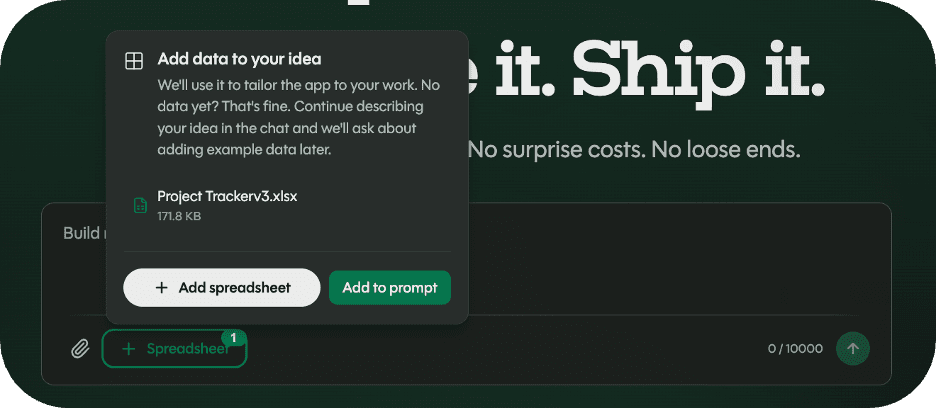
- Add a prompt if it helps. Optional. Skip it if you feel like it

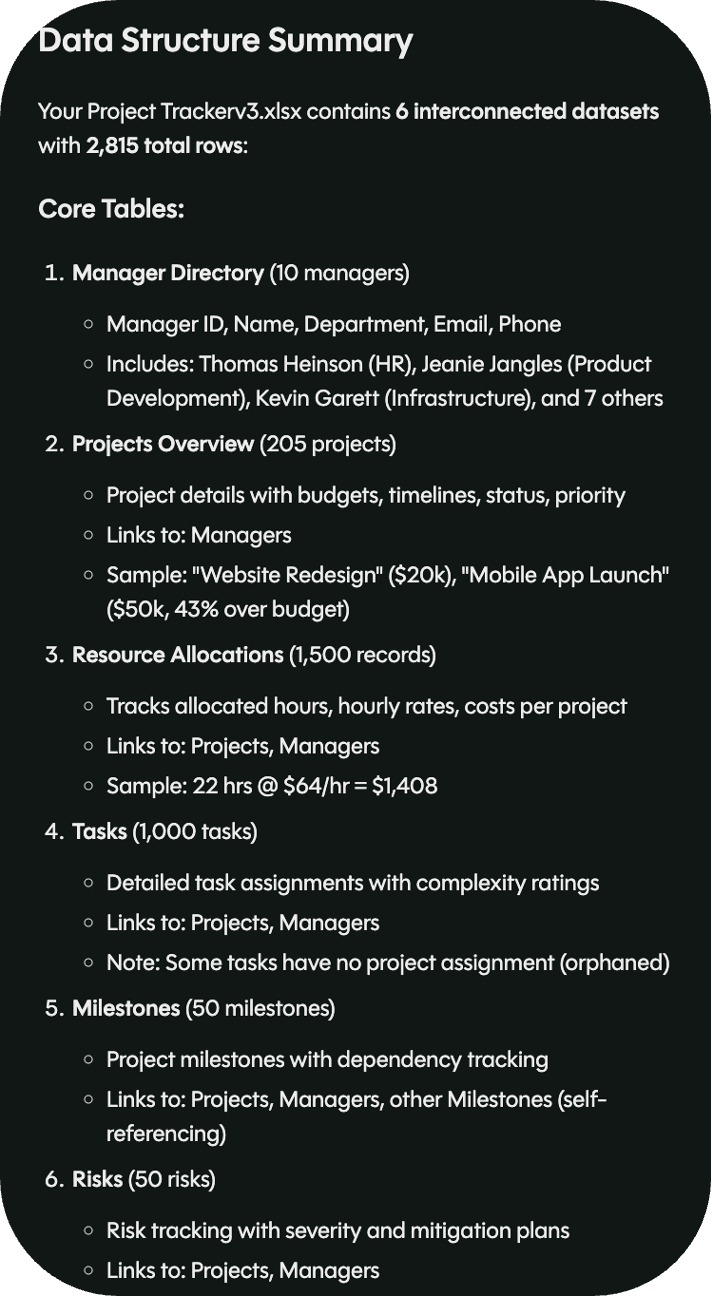
- Review the proposed structure. The assistant will spend time reviewing the structure of the spreadsheet. Then, before anything goes live, Pave shows the tables, fields and relationships - all the data and the foundation it's built on - it pulled out of the file.
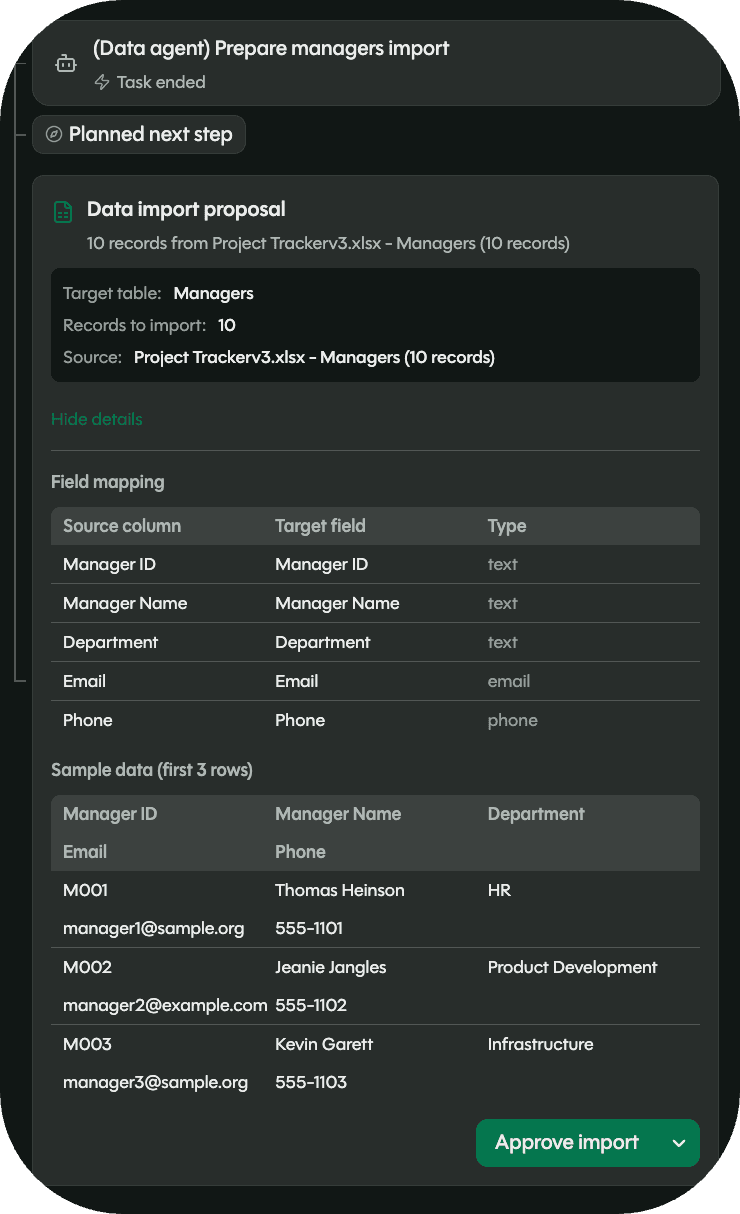
- Validate the data. Spot check the rows. Make sure dates read as dates and the data lands where it should. Then, click approve to import it.
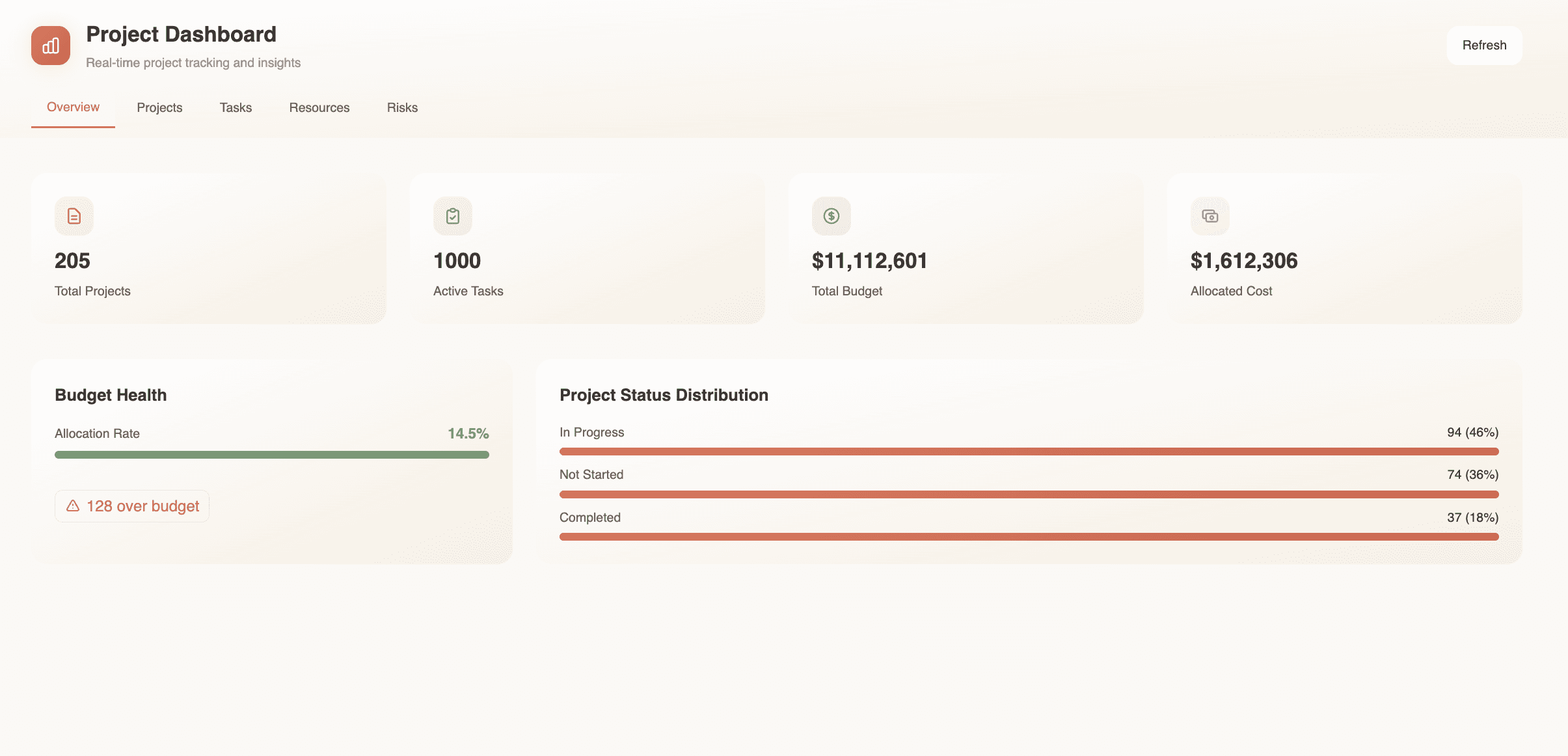
- Keep building. Once the foundation is in, the app behaves like any other Pave app. Invite the team, brand it, set up notifications - whatever you need next.
What people are doing with it already
The project tracker that grew into a system of record, now an app with task assignments and statuses instead of conditional formatting and duct tape.
The sales pipeline living in a shared file, now an app where the team updates their own deals without overwriting each other at 4pm on a Friday.
The intake spreadsheet that everyone hates, finally a real form with a queue and an admin view.
Three related sheets stitched together with VLOOKUPs for two years, now one app with the built on a foundation that'll grow with you - like any relationship should.
Try it
Spreadsheet Import is live on every plan. See it more in depth here and start a new app at quickbase.com/pave.

Written by:Michelle Hendley
.png&w=3840&q=75)