How I Made Team Workload Visible in One Place
By Paul Bills, Sr. Presales Implementation Consultant at Quickbase
Workload was invisible across my team's projects
Our team works across a lot of different projects at the same time, and it's not always clear who has too much work and who has room for more.
A lot of that information exists, but it's spread across different places, so you end up piecing it together or just going off what you remember.
I wanted a simple way to see everything at once, so I didn't have to search across files and messages to track workload.
A workload manager that looks like a game
I built an app called Sim Office 90. The idea was a workload management app that looked like SimCity and other "Sim" games from the late '80s/early '90s, for no other reason than it's fun.
"Pave makes it easy to add flair like this with just a few extra words in your prompt."
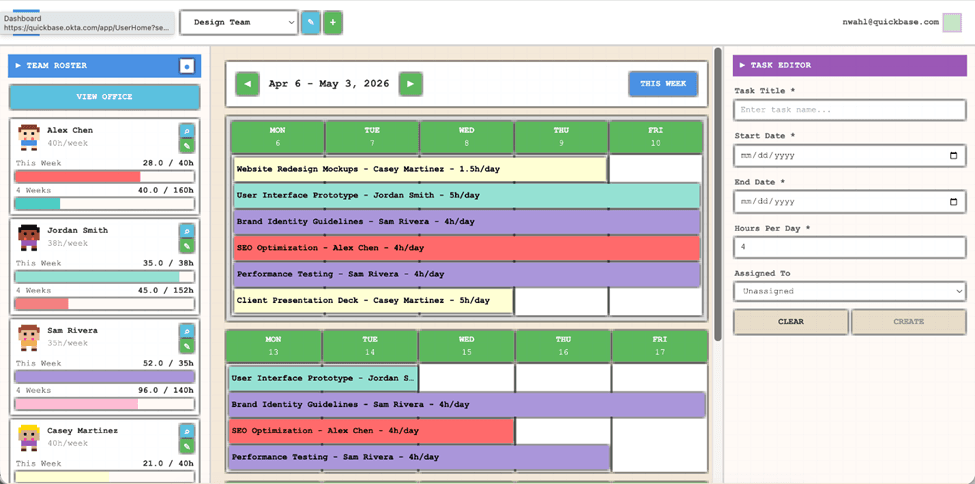
You create a team, add people to it, and then create tasks with start and end dates.
There's a calendar in the middle, and as you assign people to tasks, it shows up there so you can see how everything is laid out.
Then, on the team side, you can see each person's workload. So, if someone has 40 hours in a week, it'll show how much of that is already scheduled.
As you move through the calendar, you can see not just how busy someone is this week, but what their capacity looks like over the next few weeks as well.
Then there's the Office View, which is probably the most fun part. It shows everyone as little pixel avatars sitting at desks, with thought bubbles showing what they're working on.
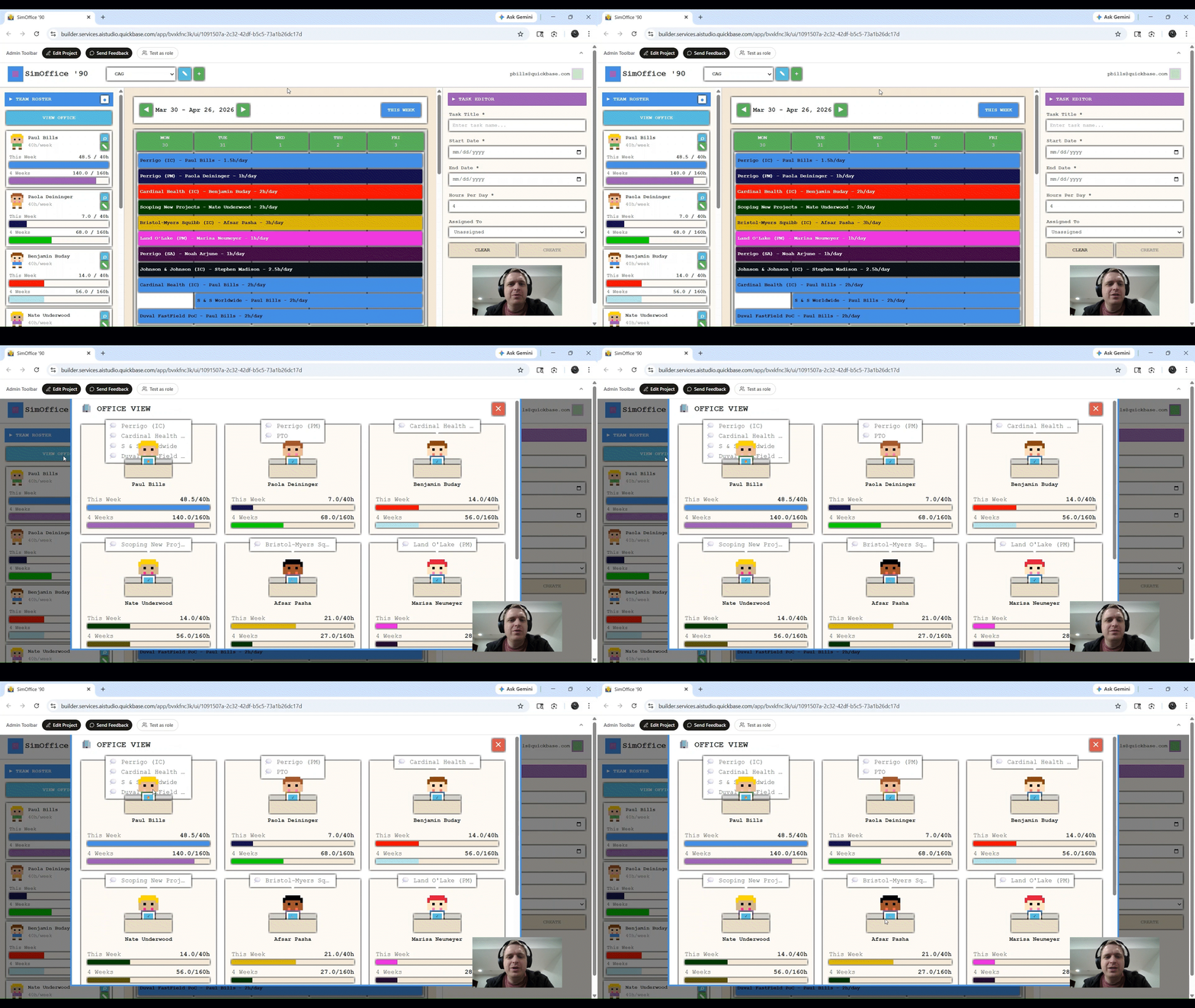
It's a simple way to take everything in at once, and it gives it a little bit of personality instead of feeling like another spreadsheet.
I treated pave like I was briefing a developer
I started with a rough idea, just a task manager that looks like a pixel art game. Then I spent some time thinking through the specifics: what the layout should be, what happens when you click things, how the pieces connect.
I treated the prompt like I was writing requirements for a developer, trying to be as clear and detailed as possible about what I wanted to see.
The first version came together pretty quickly. Pave got most of the structure right on the first pass.
"It had a version up and running on my very first prompt... within just a few minutes."
From there, it was mostly iteration. As I saw it come together, I kept thinking of new things to add. Features like showing future utilization or adding the Office View weren't part of the original idea; they came out of seeing it in action.
All in, it took about four hours to get the most advanced version of it functional. Of course, like any app, it can always be iterated on and improved. I'm already thinking about what I'll add next.
Three things I learned building with Pave
- Treat the prompt like writing requirements for a developer. The more specific I was about layout and behavior, the closer it got to what I had in mind.
- Build in pieces and iterate. Once the first version was there, most of the work was just adding to it.
- Seeing it on screen is what drove new ideas. Things like future workload and the Office View came out of that.
Try this prompt
Want to build something like this? Try Pave and enter this prompt:
Build a capacity management app styled like a pixel art simulation game (similar to Game Dev Tycoon).
Data model:
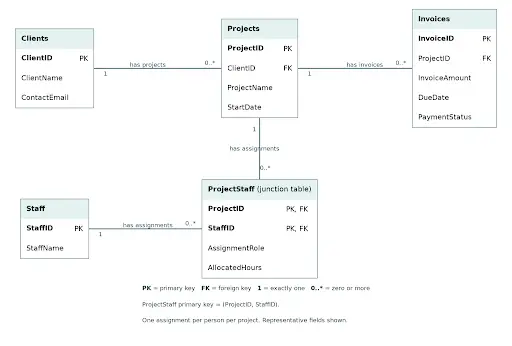
- Teams → Team Members → Tasks (parent-child relationships)
- Teams: Team Name
- Team Members: Name, Hours Per Week, Color 1, Color 2, Avatar (pixel art chibi), User (linked app user)
- Tasks: Task Name, Start Date, End Date, Average Hours Per Day, Assigned Team Member
Avatars should be diverse pixel-art office characters. Colors should use a selector with hex input or color wheel.
Core UI:
- Team selector dropdown (participants only see their teams)
- Left panel: Team Member cards showing avatar, name, and workload
- Weekly workload bar (Color 1): "X of Y Hours Used this Week"
- 4-week workload bar (Color 2): "X of Y Hours Used 4 Weeks"
- Funnel icon filters calendar by that member
Calendar (center):
- 4-week rolling view (current week highlighted)
- Scroll up/down by week + "This Week" reset
- Tasks appear as colored pills across dates
- Colored by assigned Team Member (gray if unassigned)
- Label: "Name - Task - X hrs/day"
- Workload bars update dynamically based on visible weeks
Task widget (right):
- Form: Task Title, Start/End Date, Assigned Team Member (dropdown with avatar)
- "Save and Add to Calendar" button
- Tasks can be created without assignment and updated later
Interactions:
- Clicking a task loads it into the widget for editing
- Clicking outside clears selection
- Drag-and-drop avatars onto tasks to assign/replace
Animations:
- Task pill animates from widget to calendar on save
- Pixel effects animate into workload bars, updating capacity visually
Focus on intuitive UX, dynamic workload tracking, and playful pixel-art polish.
Note: This isn't the exact prompt I used, but it reflects the core thinking and structure behind the build.
About Pave:
Pave is Quickbase's AI app builder for teams that need to turn ideas into real, usable business apps fast. Unlike prototype-only tools, Pave helps teams create production-ready apps with data, governance, permissions, hosting, and deployment built in. Built on Quickbase's secure infrastructure, Pave gives businesses a more practical, controlled path from experimentation to execution. Start building now at quickbase.com/pave.

Written by:Paul Bills
.jpg&w=1920&q=75)